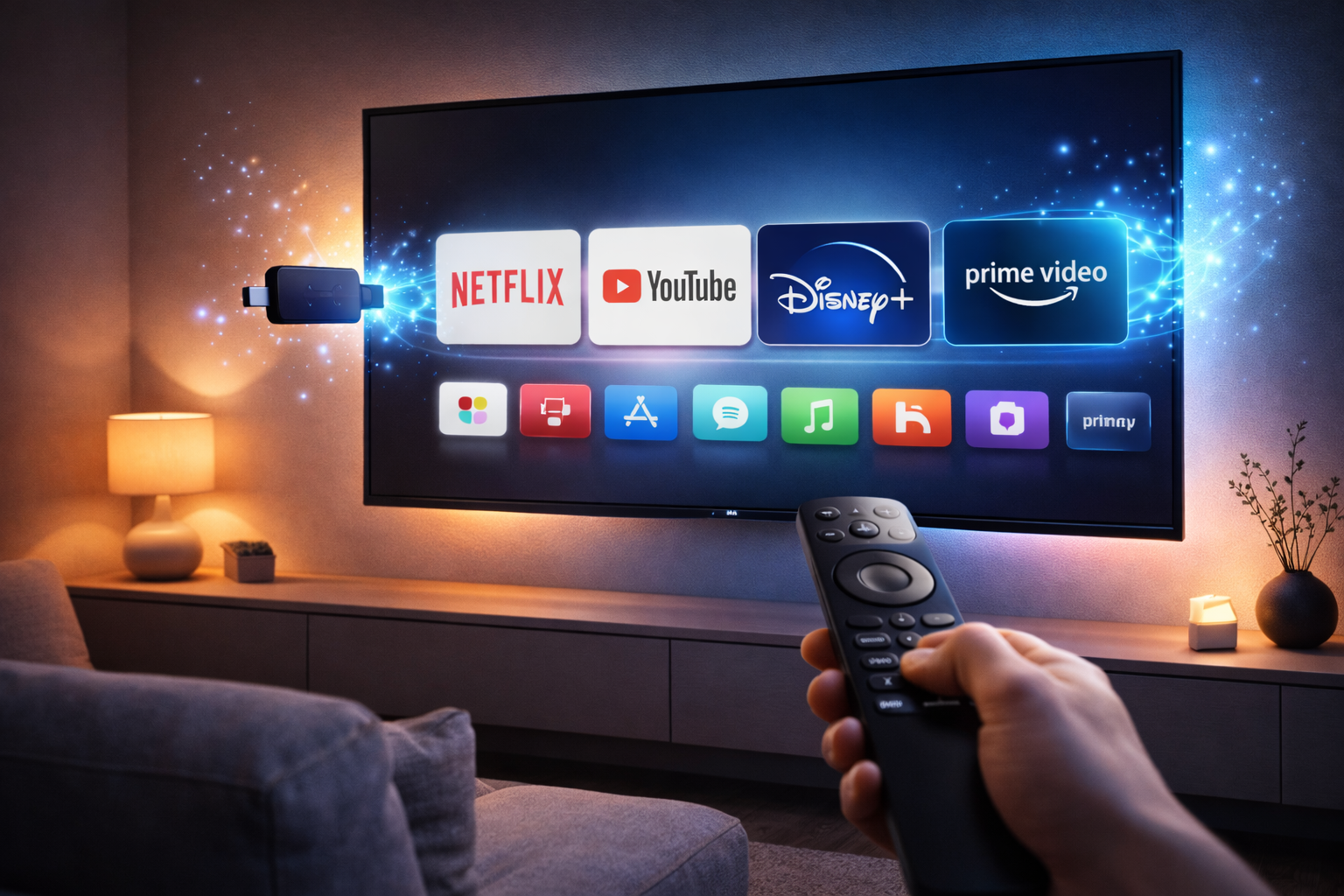

Many households still own perfectly functional televisions that lack modern smart features. These TVs may have excellent picture quality and reliable performance, but they cannot access streaming platforms like Netflix, YouTube, or Disney+. Buying a brand-new television may seem like the only solution, but that is not necessarily the case.
In 2026, turning an old television into a fully functional Smart TV is easier and more affordable than ever. With streaming devices, smart TV boxes, adapters, and screen-mirroring technologies, almost any TV can gain internet connectivity and access to thousands of apps.
This complete guide will walk you through every practical method to make an old TV smart. You will learn which devices work best, how to set them up, and how to optimize your setup for the best streaming experience.
Whether your television is ten years old or simply lacks modern apps, this guide will help you upgrade it without replacing the screen.
Why Turn an Old TV Into a Smart TV?
Before diving into the methods, it helps to understand why upgrading an existing TV can be a smarter decision than buying a new one.
1. Save Money
A good streaming device usually costs between $30 and $100. In comparison, a new Smart TV may cost anywhere from $300 to $1500 depending on the size and features.
For many households, adding a small streaming device provides all the functionality they need at a fraction of the cost.
2. Reduce Electronic Waste
Millions of televisions are discarded every year simply because they lack smart features. By upgrading your existing TV, you extend its lifespan and reduce electronic waste.
3. Keep a TV That Still Works Well
Older TVs often have excellent build quality and solid displays. If the screen still looks good and functions properly, there is no technical reason to replace it.
4. Access Modern Streaming Services
Once upgraded, your TV can stream:
- Netflix
- YouTube
- Disney+
- Amazon Prime Video
- Hulu
- Apple TV+
- Spotify and music apps
In most cases, the experience will be identical to using a brand-new Smart TV.
Step 1: Check Your TV’s Ports and Compatibility
The first step is understanding what connections your television supports. This determines which upgrade method will work best.
HDMI Ports
Most televisions made after 2008 include at least one HDMI port. HDMI is the easiest way to add smart functionality.
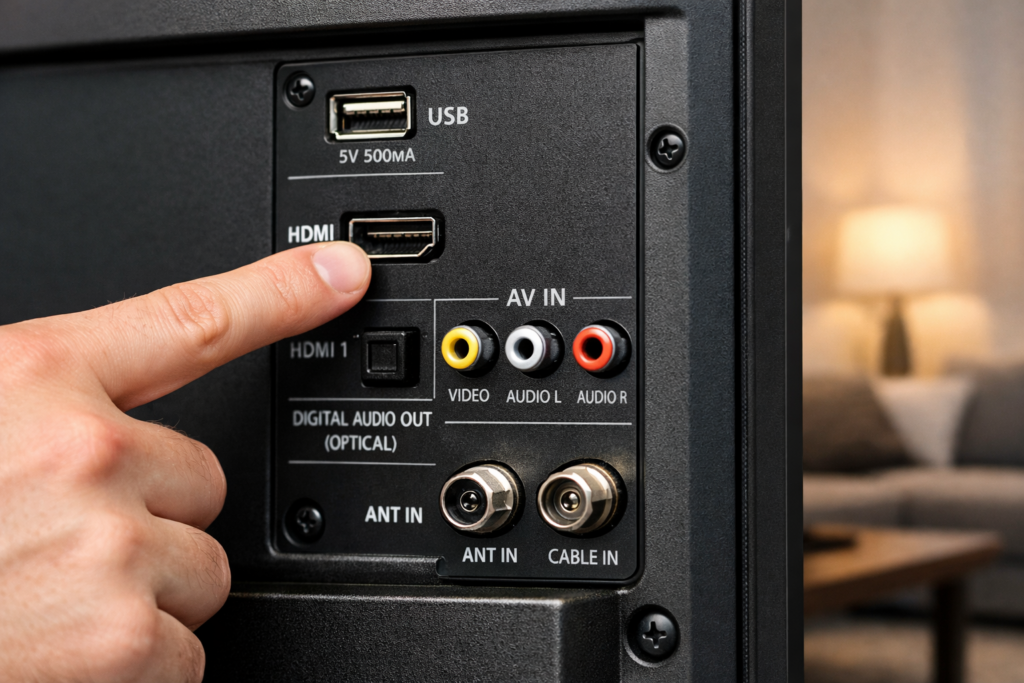
If your TV has HDMI, you can connect streaming devices directly without any converters.
Look for labels like:
- HDMI 1
- HDMI 2
- HDMI ARC
Even a single HDMI port is enough to transform your TV into a smart streaming hub.
USB Ports
USB ports are usually used for powering streaming devices or playing media files from a USB drive. Some smart dongles can also draw power directly from the USB port.
AV (Composite) Inputs
Very old televisions may only include red, white, and yellow composite inputs.
These TVs cannot connect directly to modern streaming devices, but they can still work with a simple HDMI-to-AV converter.
Component Inputs
Some older high-definition TVs have component inputs (red, blue, green connectors). These can sometimes work with specialized adapters.
Checking Resolution
If your TV supports:
- 720p or 1080p – streaming devices will work perfectly
- 4K – you can use high-end streaming devices with HDR
Even older 720p televisions can stream modern apps without problems.
Step 2: Choose the Best Device to Make Your TV Smart
There are several different types of devices that can add smart features to your television.
Each has advantages depending on your budget and needs.
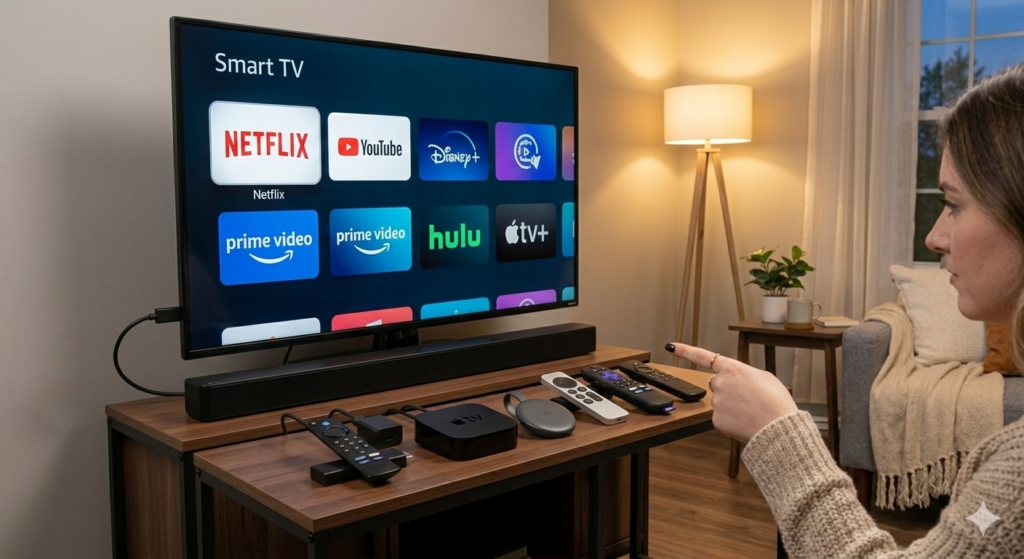
Method 1: Use a Streaming Stick (Most Popular Solution)
Streaming sticks are the easiest and most affordable way to turn an old TV into a Smart TV.
These small devices plug into an HDMI port and provide access to apps, streaming services, and voice assistants.
1. Fire TV Stick
Amazon Fire TV Stick 4K Max
The Fire TV Stick is one of the most popular streaming devices in the world. It offers fast performance, a simple interface, and strong integration with Amazon services.
Key Features
- Supports 4K Ultra HD streaming
- Built-in Alexa voice control
- Access to thousands of apps
- Dolby Vision and HDR support
- Affordable price
Best For
- Amazon Prime users
- People who want voice control
- Budget-friendly smart TV upgrades
2. Roku Streaming Stick
Roku Streaming Stick 4K
Roku devices are known for their extremely simple interface and massive library of apps.
Key Features
- Very easy setup process
- Clean, user-friendly interface
- Supports 4K HDR streaming
- Huge app ecosystem
Best For
- Beginners
- Families
- People who want a simple interface
3. Chromecast with Google TV
Google Chromecast with Google TV
Chromecast is ideal for users who prefer the Google ecosystem and want powerful content recommendations.
Key Features
- Built-in Google Assistant
- Smart recommendations from multiple apps
- Supports screen casting from Android phones
- 4K HDR streaming support
Best For
- Android users
- Google Home owners
- People who like casting content from their phone
Method 2: Use a Smart TV Box
If you want more power than a streaming stick, a smart TV box may be a better option.
These devices are slightly larger but provide more processing power and storage.
Apple TV 4K
Apple TV 4K
Apple TV is considered one of the most premium streaming devices available.
Advantages
- Extremely smooth interface
- Strong integration with iPhone and iPad
- High-quality streaming performance
- Apple Arcade gaming support
Ideal For
- Apple ecosystem users
- High-end home theaters
NVIDIA Shield TV
NVIDIA Shield TV
The NVIDIA Shield TV is widely considered the most powerful Android TV device available.
Key Features
- AI-powered upscaling
- Gaming support
- Plex media server capabilities
- Google Assistant support
Best For
- Tech enthusiasts
- Gamers
- Home media server users
Method 3: Use a Gaming Console
If you already own a gaming console, you may not need a streaming device at all.
Modern consoles function as powerful smart entertainment systems.
Examples include:
- Sony PlayStation 5
- Microsoft Xbox Series X
These consoles support streaming apps like:
- Netflix
- YouTube
- Disney+
- Twitch
- Spotify
If you already use one of these consoles, your TV is effectively already smart.
Method 4: Connect a Laptop or PC
Another easy way to add smart features is by connecting a computer to your TV.
All you need is an HDMI cable.
Steps
- Connect your laptop to the TV using HDMI
- Select the HDMI input on the TV
- Use the laptop to open streaming websites
This method works with services like:
- Netflix
- YouTube
- Prime Video
- HBO Max
Although it requires using a keyboard or mouse, it is a simple solution if you already own a laptop.
Method 5: Use Screen Mirroring or Casting
Screen mirroring allows you to display your phone or tablet screen directly on your TV.
Many streaming devices support casting.
Chromecast Casting
With Chromecast, you can cast videos directly from apps on your smartphone.
For example:
- Open YouTube on your phone
- Tap the Cast icon
- Select your TV
The video will play on the television while your phone acts as the remote.
Apple AirPlay
Apple users can use AirPlay to stream content to Apple TV devices or compatible TVs.
Android Screen Mirroring
Many Android phones support screen mirroring through Google Cast or Miracast technology.
Method 6: Use an HDMI-to-AV Converter (For Very Old TVs)
If your television only has composite inputs (red, white, yellow cables), you will need a converter.
These small devices convert HDMI signals into analog signals that older TVs can display.
Steps:
- Connect streaming device to converter
- Connect converter to TV with AV cables
- Power the converter
- Switch TV input to AV
Although picture quality will be limited to standard definition, the TV will still gain streaming capabilities.
Step 3: Setting Up Your Smart TV Device
After choosing a device, setup usually takes less than 10 minutes.
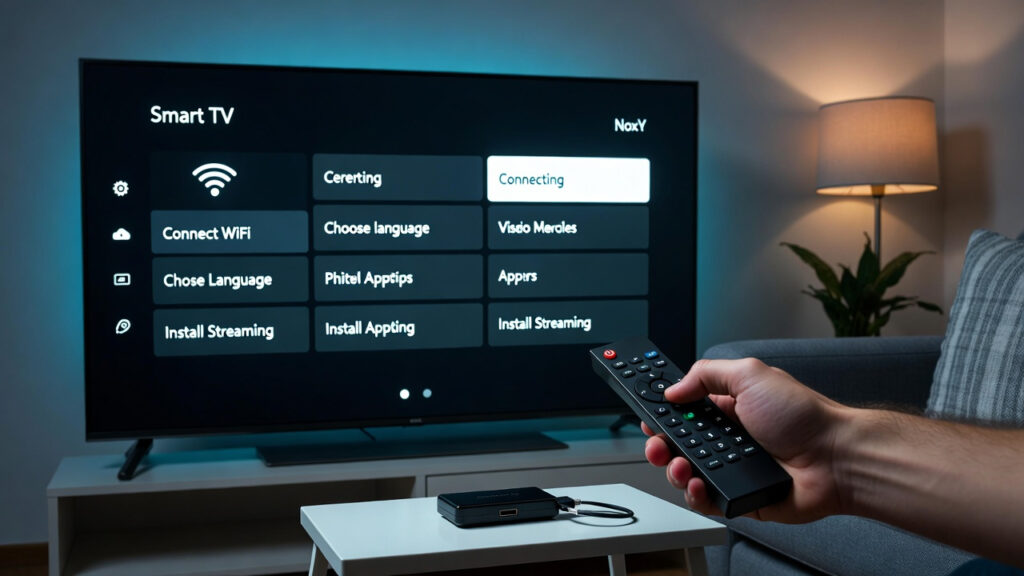
Basic Setup Steps
- Plug the streaming device into the HDMI port
- Connect the power cable
- Turn on the TV and select the HDMI input
- Connect to Wi-Fi
- Sign into your streaming accounts
Once completed, your television will display the device’s home screen.
From there, you can download apps and start streaming.
Step 4: Install Streaming Apps
After setup, you can install apps directly from the device’s app store.
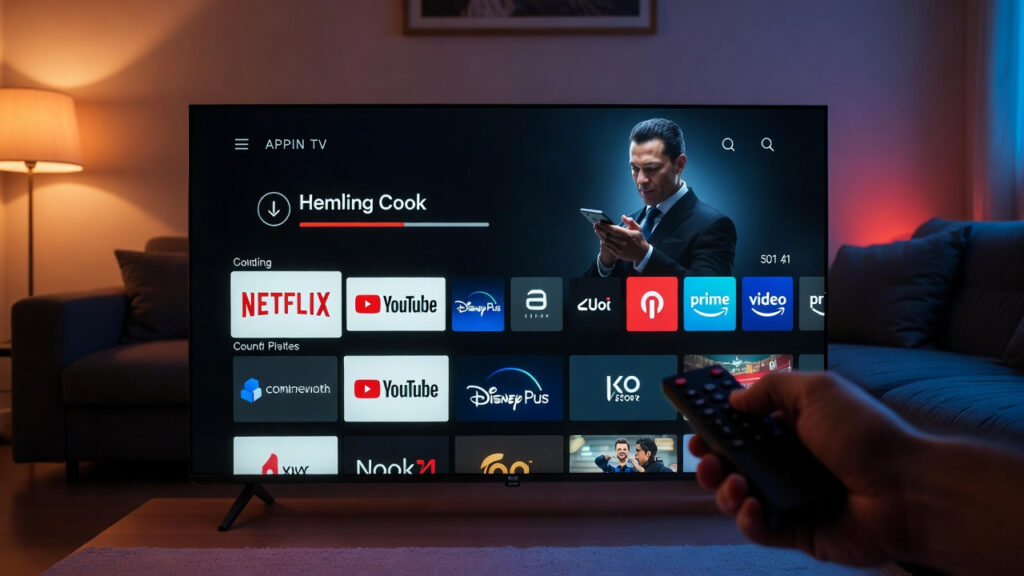
Popular apps include:
- Netflix
- YouTube
- Disney+
- Prime Video
- Hulu
- Apple TV+
- Spotify
Most devices also support live TV streaming apps such as:
- YouTube TV
- Sling TV
- Hulu + Live TV
Step 5: Improve Your Streaming Experience
Once your TV is smart, a few upgrades can make the experience even better.
Improve Wi-Fi Speed
Streaming requires a stable internet connection.
Recommended speeds:
- HD streaming: 5–10 Mbps
- 4K streaming: 20–25 Mbps
If your router is far away, consider:
- Wi-Fi mesh systems
- Ethernet adapters
- Powerline adapters
Add a Soundbar
Older TVs often have weak built-in speakers.
Adding a soundbar dramatically improves the audio experience for movies and TV shows.
Use a Universal Remote
Some streaming devices can control your TV’s power and volume.
Universal remotes simplify the setup so you do not need multiple controllers.
Step 6: Upgrade Storage and Performance
Some devices allow storage expansion or performance improvements.
Examples include:
- Clearing unused apps
- Updating firmware regularly
- Restarting the device occasionally
These steps keep your smart TV experience fast and responsive.
Smart TV Upgrade vs Buying a New TV
Many people wonder whether upgrading their current TV is worth it.
Here is a quick comparison.
| Option | Cost | Pros | Cons |
|---|---|---|---|
| Streaming Stick | $30–$60 | Cheap and easy | Limited power |
| Smart TV Box | $100–$200 | Powerful features | Higher cost |
| New Smart TV | $300–$1000+ | Latest display technology | Expensive |
For most households, a streaming device provides nearly the same functionality as a new Smart TV.
Common Problems and Solutions
Streaming Device Not Showing on TV
Solution:
- Check HDMI connection
- Select correct input source
- Restart the device
Apps Running Slowly
Solution:
- Update device software
- Restart the device
- Close background apps
Wi-Fi Keeps Disconnecting
Solution:
- Move router closer
- Use Ethernet adapter
- Upgrade router firmware
Future-Proofing Your Smart TV Setup
Technology continues to evolve, but there are a few ways to keep your setup relevant.
Choose devices that support:
- 4K resolution
- HDR formats
- Voice assistants
- Frequent software updates
Streaming devices receive updates much more frequently than Smart TVs, which is another reason many people prefer them.
Final Thoughts
Turning an old television into a Smart TV in 2026 is incredibly simple and cost-effective. Instead of spending hundreds of dollars on a new display, you can upgrade your existing TV with a small streaming device and gain instant access to thousands of apps, movies, and streaming services.
Whether you choose a streaming stick, a powerful smart TV box, or even a gaming console, the result is the same: your TV becomes a modern entertainment hub.
For most users, devices like the Amazon Fire TV Stick, Roku Streaming Stick, or Chromecast with Google TV provide the best balance of price, performance, and ease of use.
With the right setup and a stable internet connection, even a decade-old television can deliver a full Smart TV experience.