

How to Speed Up a Slow Smart TV (10 Easy Fixes That Actually Work)

Smart TVs have completely changed how we watch entertainment. Instead of connecting separate media players, modern televisions allow users to stream Netflix, YouTube, Disney+, and many other apps directly from the TV itself.
However, many people eventually notice a common issue: their Smart TV becomes slow over time.
Menus take longer to open. Apps freeze or crash. Streaming services buffer frequently. Even simple navigation can feel frustratingly sluggish.
If this sounds familiar, you’re not alone. Smart TV performance issues are extremely common, especially after several months or years of use.
The good news is that most slow Smart TV problems are easy to fix. In many cases, you can dramatically improve performance with just a few simple adjustments.
In this complete guide, you’ll learn:
- Why Smart TVs slow down over time
- 10 proven fixes that actually improve performance
- How to reduce buffering and lag
- How to maintain fast Smart TV performance long term
These solutions work for nearly all Smart TV brands, including Samsung, LG, Sony, TCL, Hisense, Philips, and others.
Let’s start by understanding why Smart TVs slow down in the first place.
Why Smart TVs Become Slow Over Time
Just like smartphones and computers, Smart TVs rely on processors, memory, and storage to run applications. Over time, several factors can cause the system to slow down.
Understanding these causes helps you apply the right fix.
Limited Hardware Power
Unlike computers or gaming consoles, most Smart TVs use relatively modest processors and limited RAM.
Manufacturers design them primarily for streaming rather than heavy multitasking. As new apps become more demanding, older hardware can struggle to keep up.
Accumulated Cache and Temporary Files
Streaming apps store temporary files called cache.
These files help apps load faster, but they can also accumulate over time and reduce performance.
Too much cached data may cause apps to:
- Load slowly
- Crash unexpectedly
- Freeze during playback
Too Many Installed Apps
Many users install dozens of apps on their Smart TVs.
Each installed app takes up storage space and may run background processes.
Eventually, this can slow down the system.
Outdated Software
Smart TV manufacturers release software updates regularly.
These updates improve performance, fix bugs, and optimize system stability.
If your TV hasn’t been updated in a long time, performance problems may appear.
Weak Internet Connection
Streaming services rely heavily on internet speed.
A slow or unstable internet connection can cause:
- buffering
- delayed menu loading
- poor video quality
Sometimes the TV itself is not slow — the internet connection is the real issue.
Now let’s look at 10 easy fixes that actually work.
1. Restart Your Smart TV
Restarting your Smart TV is the simplest and most effective fix.
Over time, background apps and processes accumulate in memory. Restarting clears this temporary memory and refreshes the system.
Many users notice an immediate speed improvement after a restart.
How to Properly Restart a Smart TV
Instead of simply turning the TV off with the remote, follow these steps:

- Turn off the TV using the remote
- Unplug the TV from the power outlet
- Wait 60 seconds
- Plug the TV back in
- Turn it on again
This method forces the system to perform a full reboot.
Restarting your Smart TV once every week can help maintain good performance.
2. Check Your Internet Speed
If your TV feels slow during streaming, the problem may actually be your internet connection.

Streaming services require stable internet speeds to deliver smooth playback.
Recommended Internet Speeds
| Streaming Quality | Recommended Speed |
|---|---|
| Standard HD | 5–10 Mbps |
| Full HD (1080p) | 10–15 Mbps |
| 4K Ultra HD | 25 Mbps or higher |
If your internet speed is lower than these values, buffering and lag are likely.
Ways to Improve Internet Performance
Try the following solutions:
- Move the router closer to the TV
- Restart your Wi-Fi router
- Reduce network congestion
- Upgrade your internet plan if necessary
For best performance, use a wired Ethernet connection instead of Wi-Fi whenever possible.
3. Close Background Apps

Many Smart TVs allow multiple apps to remain open in the background.
While this feature improves multitasking, it can also consume valuable system resources.
Too many background apps can slow down navigation and cause apps to crash.
How to Close Background Apps
The process varies depending on your Smart TV brand.
However, most TVs follow similar steps:
- Open the Recent Apps or Multitasking menu
- Select the app you want to close
- Choose Close, Exit, or Force Stop
Closing unused apps regularly helps free up system memory.
4. Clear App Cache and Temporary Data
Over time, app cache files accumulate and may cause apps to behave unpredictably.

Clearing cache removes temporary files and allows apps to rebuild fresh data.
This can significantly improve speed.
How to Clear App Cache
- Open Settings
- Go to Apps or Application Manager
- Select the app (for example Netflix or YouTube)
- Choose Clear Cache
This process does not delete your login details.
You may also see an option called Clear Data, but use it carefully because it resets the app completely.
5. Update Your Smart TV Software
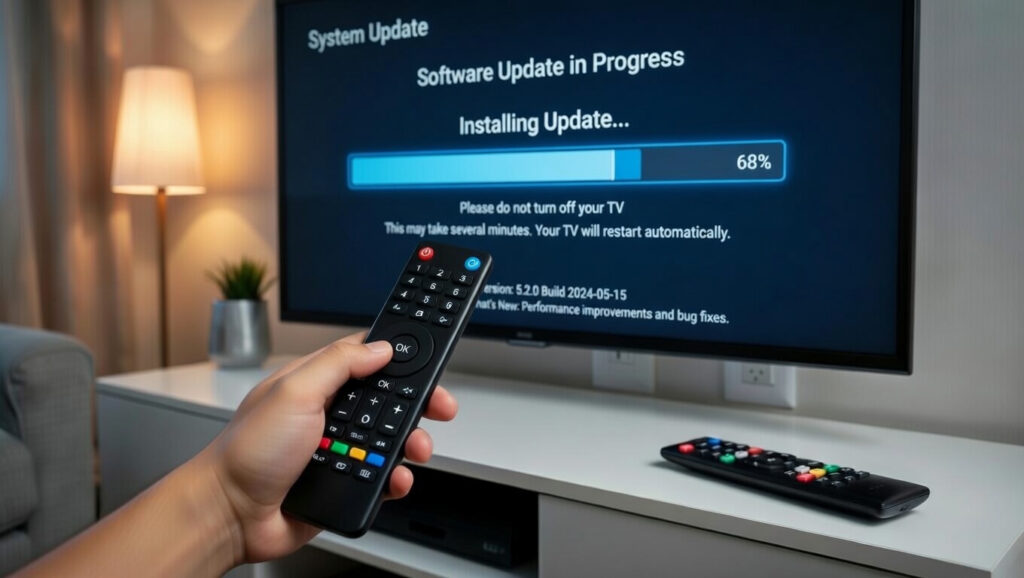
Running outdated software can cause many performance problems.
Manufacturers release updates to:
- Improve system speed
- Fix bugs
- Increase app compatibility
- Enhance security
Keeping your TV updated ensures optimal performance.
How to Check for Updates
- Open Settings
- Go to System or Support
- Select Software Update
- Choose Check for Updates
If an update is available, install it immediately.
Many updates include performance improvements that make the TV run smoother.
6. Remove Unused Apps

Apps consume storage space even when they are not actively used.
If your Smart TV storage becomes full, performance can decline dramatically.
Removing unused apps helps free storage and improve speed.
How to Uninstall Apps
- Open the Apps menu
- Highlight the app you want to remove
- Select Delete or Uninstall
Try to keep only the apps you use regularly.
Most people only need a few streaming apps such as:
- Netflix
- YouTube
- Prime Video
- Disney+
Removing unnecessary apps keeps your TV running faster.
7. Disable Automatic App Updates
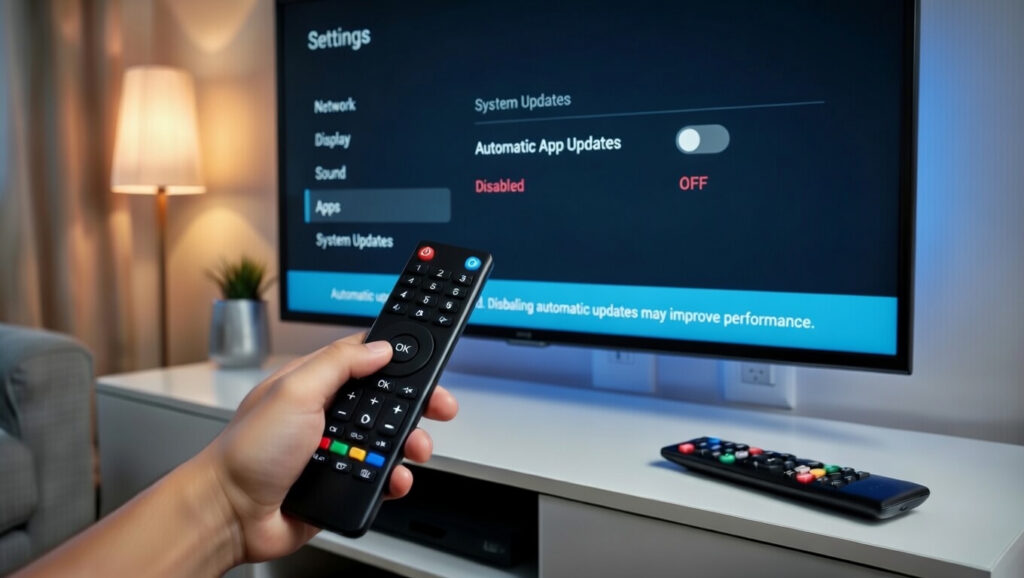
Many Smart TVs automatically update apps in the background.
While updates are useful, they can sometimes slow down the TV during use.
If your TV frequently lags, you can disable automatic updates and perform updates manually instead.
Benefits of Manual Updates
Manual updates allow you to:
- Control when updates occur
- Avoid slowdowns during streaming
- Monitor which apps are updated
You can check for updates periodically instead of allowing the system to update constantly.
8. Turn Off Unnecessary Smart Features
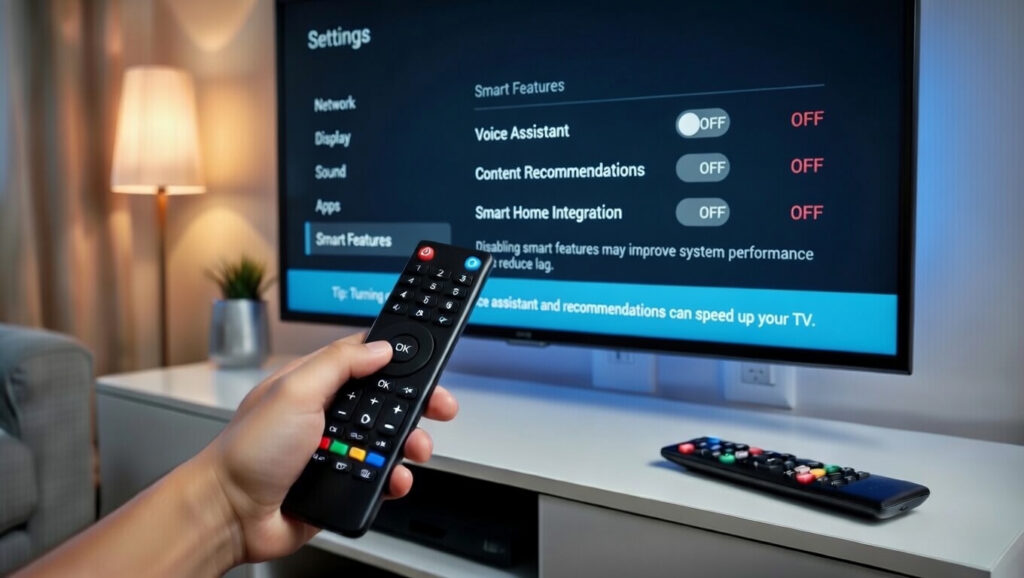
Modern Smart TVs include many extra features such as:
- Voice assistants
- Smart home integration
- Personalized recommendations
- Advertising features
- Data tracking services
While useful for some users, these features consume processing power and memory.
Disabling unnecessary features can noticeably improve performance.
Features You Can Safely Disable
Consider disabling:
- Voice assistants if unused
- Content recommendations
- Smart home integrations
- Usage tracking features
These changes reduce background processing and free system resources.
9. Use a Streaming Device Instead

If your Smart TV is several years old, the built-in software may simply be underpowered.
In this case, using a dedicated streaming device can dramatically improve performance.
Streaming devices often have faster processors and receive more frequent updates.
Popular options include:
- Amazon Fire TV Stick 4K Max
- Roku Streaming Stick 4K
- Google Chromecast with Google TV
These devices plug into your TV’s HDMI port and provide a faster interface for streaming apps.
Many users find that a $40 streaming stick performs better than older Smart TV systems.
10. Perform a Factory Reset (Last Resort)

If your Smart TV is still slow after trying all the fixes above, performing a factory reset may solve the issue.
A factory reset removes all apps, settings, and cached data, restoring the TV to its original state.
How to Factory Reset a Smart TV
- Open Settings
- Select System
- Choose Reset or Factory Reset
- Follow the on-screen instructions
After resetting, reinstall only the apps you actually need.
Many users report dramatic speed improvements after a factory reset.
Bonus Tips to Keep Your Smart TV Fast
Preventing slowdowns is easier than fixing them.
Follow these maintenance tips to keep your Smart TV running smoothly.
Restart the TV Regularly
Restart your TV at least once per week.
This clears memory and prevents background processes from accumulating.
Keep Software Updated
Install system updates whenever they become available.
Updates often include performance improvements.
Maintain a Stable Internet Connection
Ensure your router provides strong Wi-Fi coverage.
If possible, use a wired Ethernet connection for streaming.
Avoid Installing Too Many Apps
Only install apps you actually use.
Too many apps consume storage and slow the system.
Clear Cache Occasionally
Clearing app cache every few months helps prevent performance issues.
When It Might Be Time to Upgrade
Even with all these fixes, some older Smart TVs may struggle with modern apps.
If your TV is more than 8–10 years old, the hardware may be outdated.
In that case, consider either:
- Using a streaming device
- Upgrading to a newer Smart TV
Fortunately, streaming devices are inexpensive and often provide excellent performance improvements.
Final Thoughts
A slow Smart TV can make watching your favorite shows frustrating, but the problem is usually easy to solve.
Restarting the TV, clearing app cache, improving internet speed, and removing unused apps can dramatically improve performance.
If your Smart TV still feels sluggish, using a dedicated streaming device is one of the fastest and most affordable solutions.
By following these 10 easy fixes that actually work, you can restore smooth navigation, faster app loading, and better streaming performance.
With a few simple adjustments, your Smart TV can feel fast and responsive again.


